
 AI Image Generator
 AI Character
 AI Art
 AI Video Generator
 Other Tools

- My Creations
- Explore More
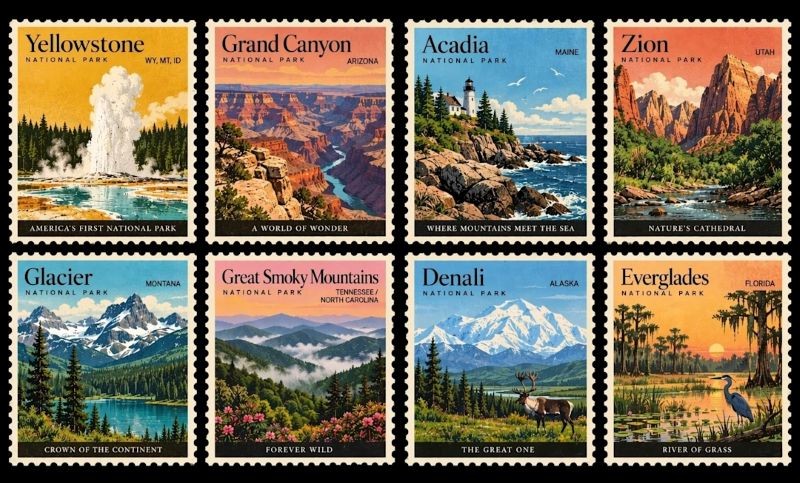
Meet GPT Image 2.5: Your Vision, Rendered in Real Time
Bring your wildest concepts to life without the usual guesswork. Whether you need the blazing-fast strokes of Flare mode or the pinpoint precision of Sunburst mode, GPT Image 2.5 handles multi-turn tweaks and vivid text-to-image creation like a natural collaborator. Type what you feel, refine it as you go, and watch your ideas take shape.
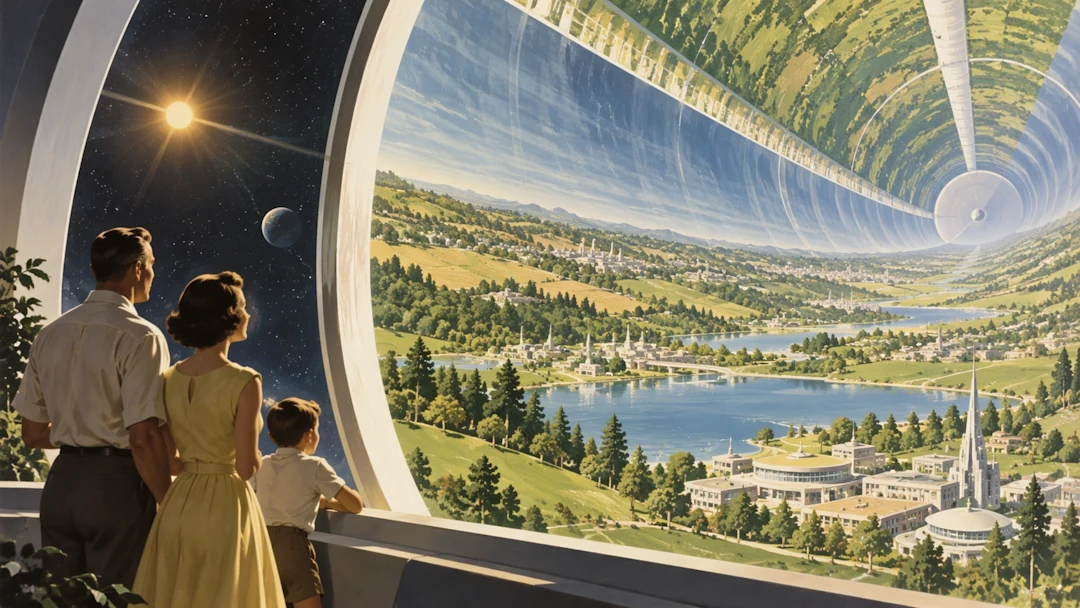
Flare vs. Sunburst: Speed Meets Precision
Not every project needs the same workflow. Use Flare mode when you are brainstorming on the fly, sketching out rapid iterations, or chasing a sudden spark of inspiration. Switch to Sunburst mode when every single detail matters—rendering complex lighting, intricate textures, and crisp line art that feels hand-crafted.
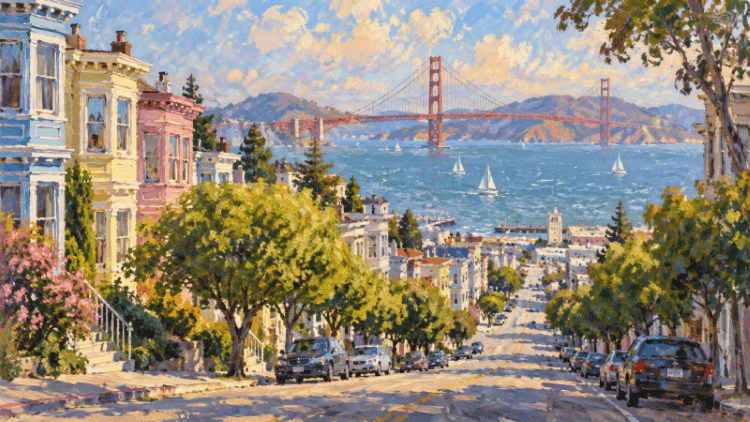
True Multi-Turn Editing: Refine Without Starting Over
We have all been there: the composition is almost perfect, but the character's expression is off, or the background needs a different vibe. Instead of rewriting your entire prompt and crossing your fingers, GPT Image 2.5 lets you chat with your canvas. Point out what needs fixing, tweak specific elements, and watch the artwork evolve organically.
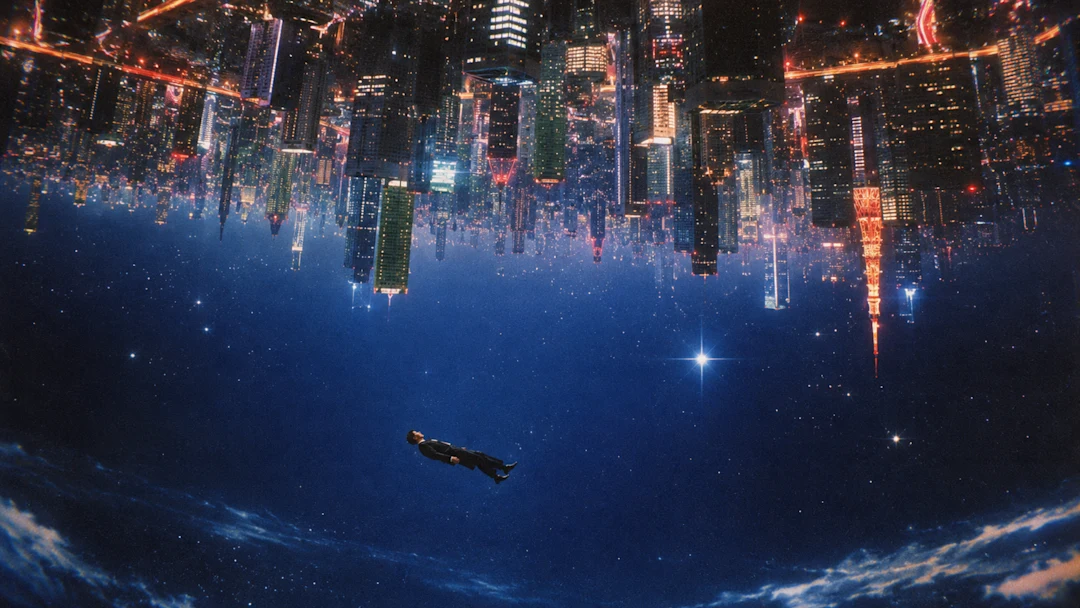
Built for Storytellers, Creators, and World-Builders
Whether you are drafting multi-panel manga strips on CharaLab, designing custom character concepts, or putting together visual storyboards, this model keeps your stylistic consistency intact. Bring coherent characters across different scenes, maintain atmospheric moods, and turn your narrative scripts into visual reality with minimum friction.
How to Create Amazing Art with GPT Image 2.5
Step 1 – Select Model and Enter Your Prompt
Choose GPT Image 2.5 from the model dropdown menu, then type a detailed description of what you want to create in the prompt box. You can also upload up to 15 reference images if you want to guide the style or composition.
Step 2 – Fine-Tune Mode, Resolution, and Aspect Ratio
Tailor your output by switching between Faster and Sharper modes, picking your preferred resolution (1K, 2K, or 4K), and selecting the ideal aspect ratio (from Auto and 16:9 to portrait and square formats).
Step 3 – Generate and Iterate
Choose your desired quantity, check your credit balance, and hit the purple Generate button. Use multi-turn edits to tweak and refine the results until it matches your exact vision.
Frequently Asked Questions
What makes GPT Image 2.5 different from other image generators?
GPT Image 2.5 is built for seamless collaboration. Instead of just spitting out a static image from a single prompt, it supports true multi-turn editing, letting you chat with your canvas to tweak expressions, lighting, or background details without starting from scratch.When should I choose Faster mode versus Sharper mode?
Use Faster mode when you are brainstorming on the fly, testing rapid ideas, or exploring quick concept sketches. Switch to Sharper mode when every detail matters—rendering high-fidelity textures, complex lighting, and crisp line work.Can I upload reference images to guide my generation?
Yes! You can upload up to 15 reference images (in JPG, PNG, or WebP format up to 4.7 MB each) to help the AI understand your desired style, character look, or composition.What resolutions and aspect ratios can I export?
You have complete control over your canvas. Choose between 1K, 2K, or ultra-detailed 4K resolutions, and pick from a wide array of aspect ratios—including 16:9 widescreen, 9:16 portrait, square 1:1, 21:9 cinematic, or just leave it on Auto to let the composition breathe.How do credits work when generating images?
Each generation run consumes a specific amount of credits based on your configuration. You can easily view your current credit balance directly beneath the Generate button and top up instantly whenever you need more creative fuel.